Live meter
A big readout that shows which digits have settled
The reading is large, and each digit shows whether it has settled. A settled digit is brighter than one that is still moving.
iOS and Android, beta this winter.
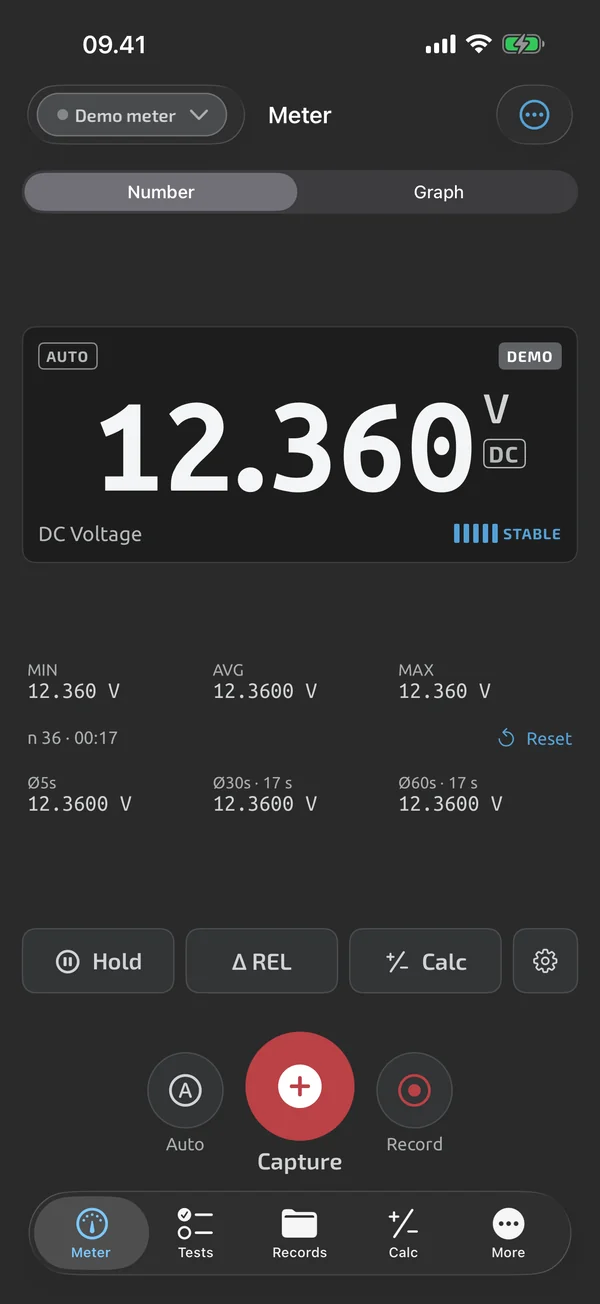
Which digits have settled
Each digit position, aligned on the decimal point, counts as settled when it has been unchanged for at least 500 ms. It is drawn in the settled colour; otherwise it is drawn dimmer, in a solid colour with no transparency. A change of range or decimal point resets every position to unsettled. Digits never animate.
Stable on five bars
Next to the number, five stability bars light up one by one while the reading holds steady. With all five lit, the reading is stable. The same stable signal drives auto-capture. In the settings you can change the tolerance and the minimum duration.
OL, UL and signs
When the meter shows overload or underload, the readout shows OL or UL with the current prefix and unit. It never shows a number, and never an infinity sign. Negative values show a true minus sign in a reserved sign cell, so the digits don't shift. Before the first reading arrives, the readout shows dashes. If no reading has arrived for 3 s, the last value is struck through and dimmed, with its age.
Landscape and keep-awake
In landscape the readout takes the left side and the stats and controls the right. Rotating keeps hold, REL, graph mode and zoom, and drops no readings. A setting can lock the meter screen to portrait. The screen stays on while the meter shows live or demo readings. The setting has three options: While measuring (the default), Always while app is open, or Never.
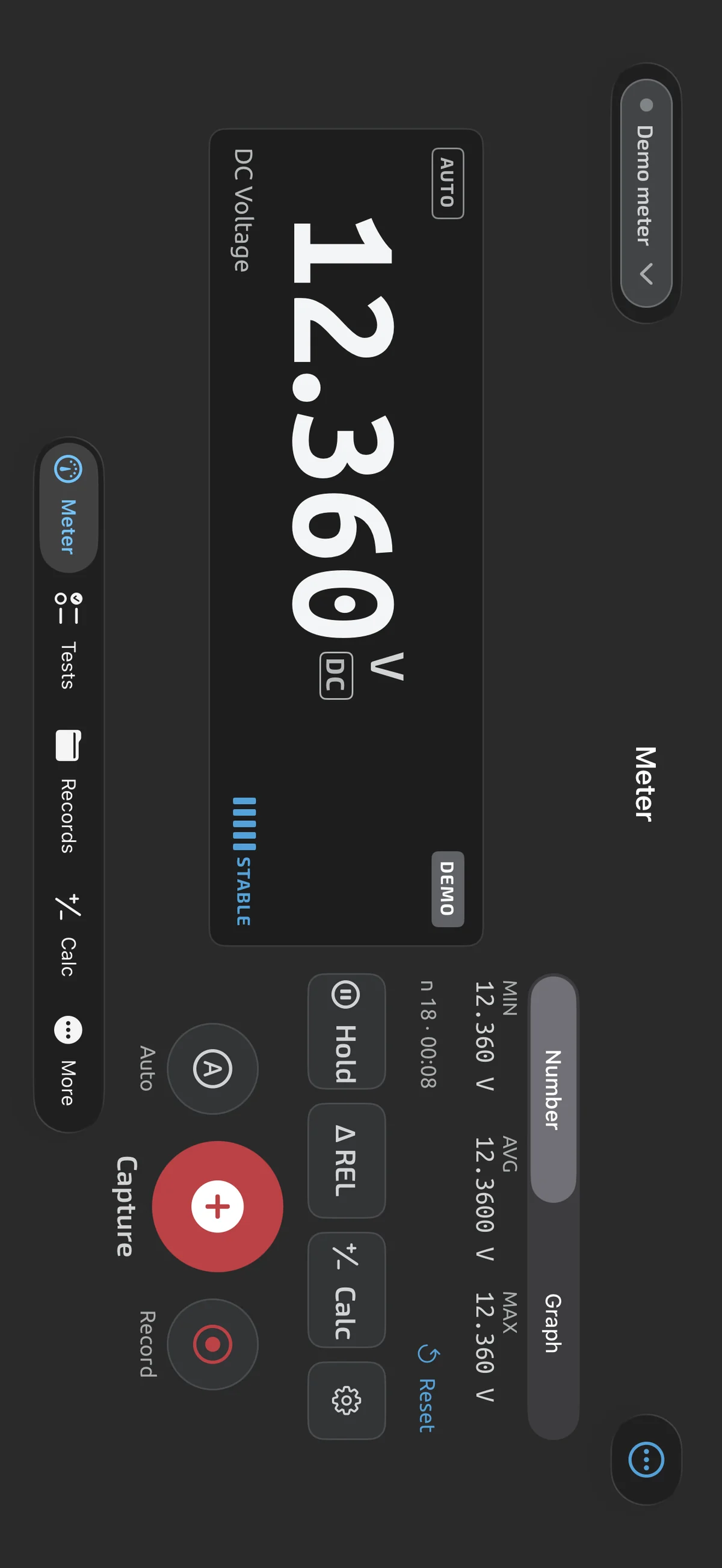
Battery at a glance
The device chip shows the meter's battery percentage when the meter reports it, and a low-battery icon when the meter's low-battery flag is set.
What it does and doesn't do (yet)
| What it does | Plan |
|---|---|
| A large readout that shows which digits have settled; OL and UL are shown as OL and UL, never as a number. | Free |
| Five stability bars show when a reading is steady. | Free |
| A landscape layout for the meter and run screens. | Free |
| Keeps the screen on while you measure, run a test or record. | Free |
| Shows the meter's battery, model and firmware where the meter reports them, and warns when its battery is low. | Free |
Not yet, or not planned
- One live Bluetooth meter at a time; two meters live at once is not planned for v1.
- Reads what your meter measures; it doesn't change the meter's accuracy or ranges.
Questions
What does OL or UL mean on the readout?
OL and UL are the meter's overload and underload indications. The readout shows OL or UL with the current prefix and unit; it never shows a number and never an infinity sign.
How does the app decide a reading is stable?
A digit is settled when it has been unchanged for at least 500 ms. The five stability bars light as the reading holds steady, and all five lit means stable. You can change the tolerance and the minimum duration in the settings.
Why do some digits look dimmer?
Dimmer digits have not yet been unchanged for 500 ms, so they may still change. A range or decimal change resets all digits to dim.
Coming to iPhone and Android.
iOS and Android, beta this winter.


Questions or a meter to suggest? Mail support@testnmeasure.app.
No ad networks, no sign-up.