Logging
Review every session: graph, stats and captures
Every log session opens as a graph, with its captures and notes below. The Records tab lists them all, and you can search and restore what you delete.
iOS and Android, beta this winter.
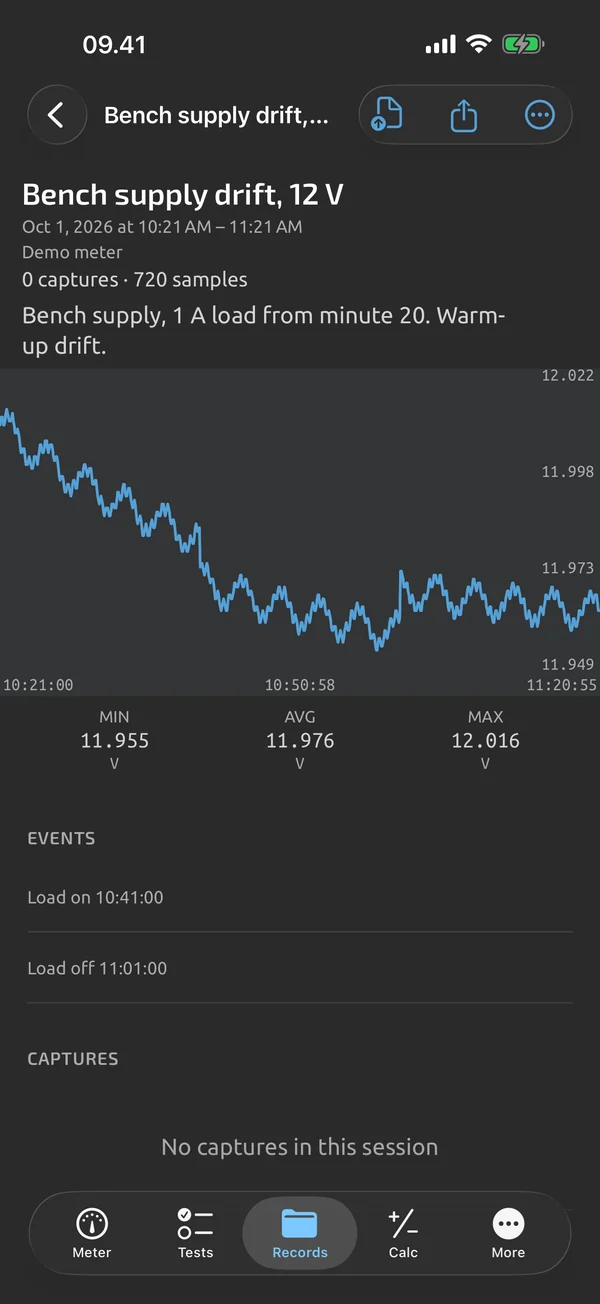
The session view
A session shows its name, dates, instruments, and sample and capture counts. Below that is a full-session graph with pan and zoom, min, max and average over the visible range, and capture markers. Then comes the capture list with notes and thumbnails.
You can rename it, add a session note, continue the session, export, share or delete it. Pan and zoom use the same gestures as the live graph.
Find a record
The Records tab lists log sessions and test files, newest first. Search covers names, labels, notes and run metadata. Filters cover date range, instrument, function, and for test files the template, result and status.
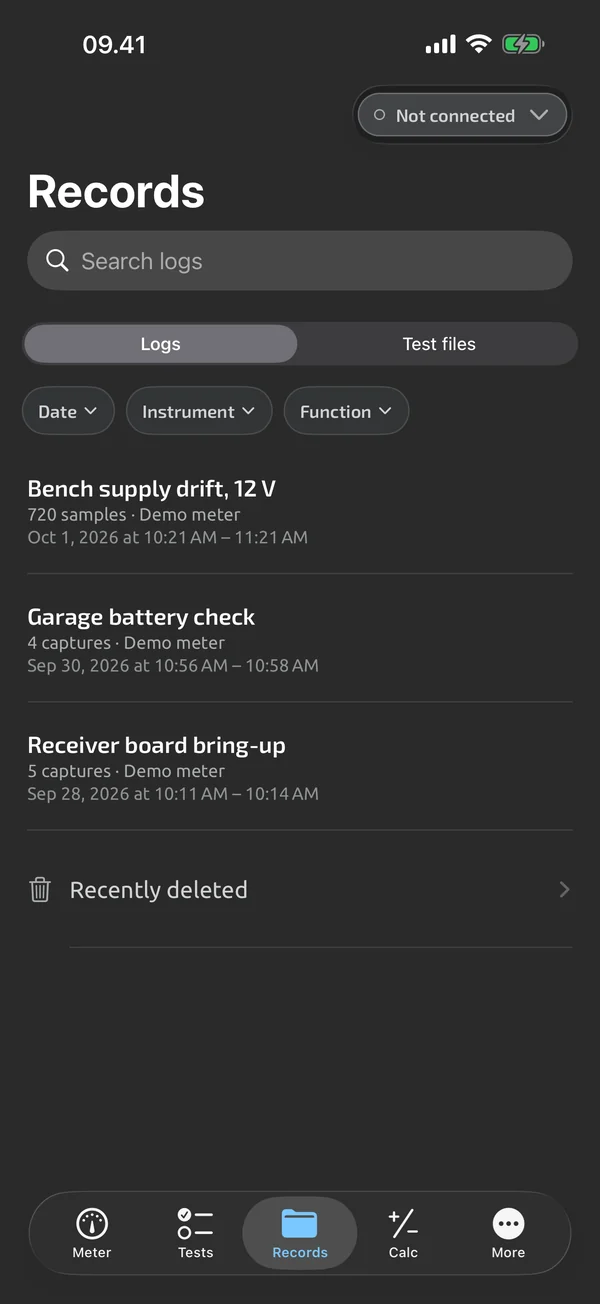
Recently deleted
Deleting a session sends it to Recently deleted, where it can be restored for 30 days. After that it is purged on the device and on the server.
Get it out
Any session can be exported. CSV is Free; see CSV export.
What it does and doesn't do (yet)
| What it does | Plan |
|---|---|
| Search and filter your history; deleted items stay in Recently deleted for 30 days. | Free |
| Review a session as a full graph with pan and zoom, statistics and its captures. | Free |
Not yet, or not planned
- Merging two capture sessions is not available yet.
Questions
Can I restore a deleted session?
Yes, for 30 days. Deleted items go to Recently deleted, and after 30 days they are purged on the device and on the server.
Can I search notes and labels?
Yes. Search in the Records tab covers names, labels, notes and run metadata.
Coming to iPhone and Android.
iOS and Android, beta this winter.


Questions or a meter to suggest? Mail support@testnmeasure.app.
No ad networks, no sign-up.