Test sequences Pro
Run a procedure point by point
A run walks through the points of a template one at a time, with the reading, the limits and the result on one screen. The test-run features are Pro, and you can try them on your first test runs; Pro is an in-app upgrade, see Pricing.
iOS and Android, beta this winter.
Start a run
Starting a run shows the template name and version, a run title, the metadata fields from the template with extra key/value rows, and the instrument; the connected meter is the default, and Manual only is allowed. Required fields block Start. Auto-increment fields, such as a serial number, prefill from the previous run: AX-2291 becomes AX-2292.
The capture loop
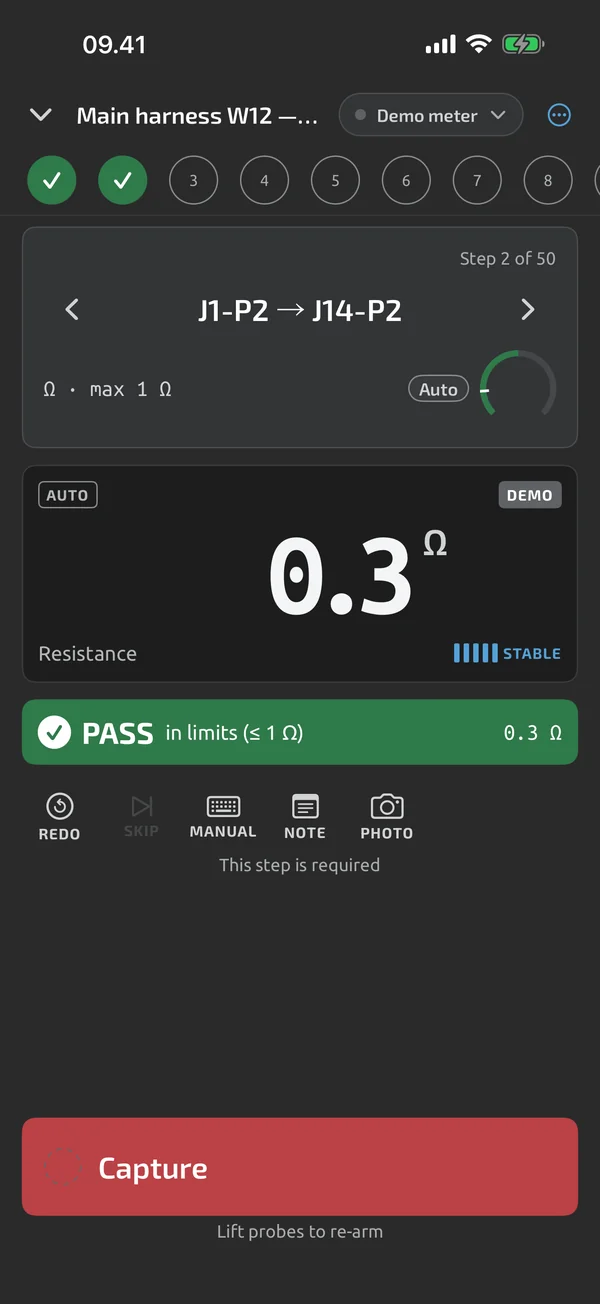
The step card shows the group, the step number, the label, the instructions and the expected value with its limits. Under it sits the live readout and the Capture & next button. A capture freezes the reading, shows PASS or FAIL with its reason, and after the result dwell, 600 ms by default, advances to the next pending point. Auto-advance can be turned off for a template or a run. If no reading has arrived for 3 s, the button becomes Enter manually, so a run never captures a stale value. Glove mode turns the lower half of the screen into the capture target.
Redo, skip, go back
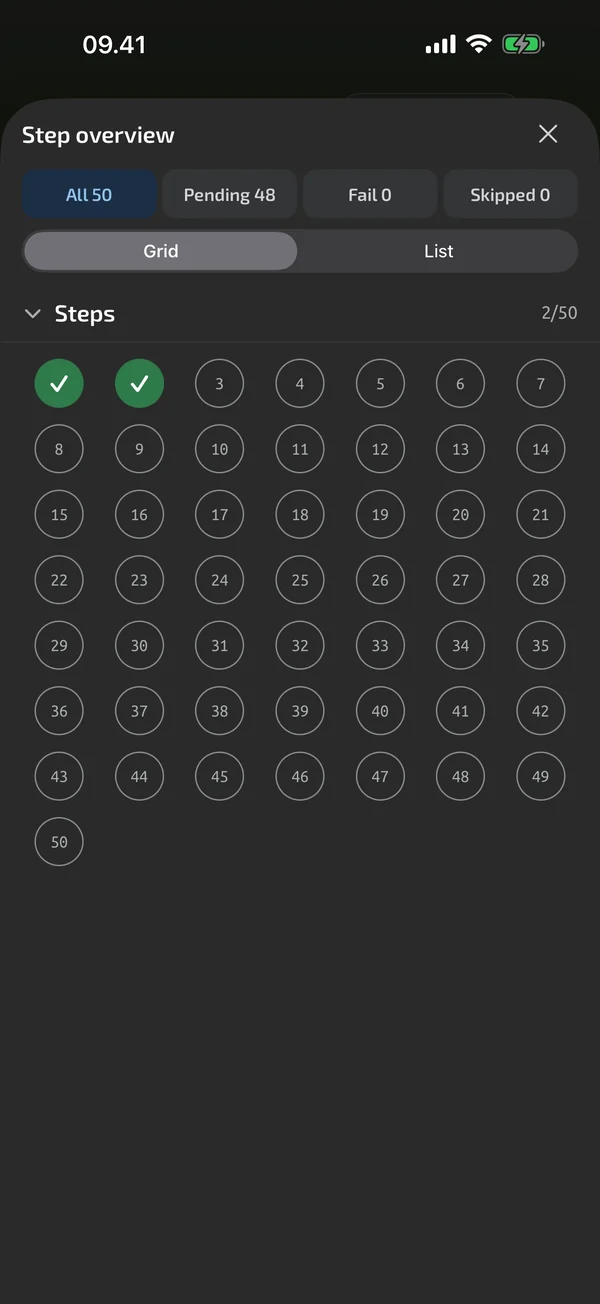
A rail of chips shows every position and its state: pending, current, pass, fail, n/a, skipped, manual, edited. Tap a chip to jump to it. Back and Next move the focus without capturing. Redo replaces the value and keeps the earlier attempt with its value, result and time. Skip works only when the step allows it, and required steps show Skip disabled. The step overview lists all positions by group, with filters for All, Pending, Fail and Skipped.
Typed values, checks and notes
Manual opens the entry sheet prefilled with the step's unit, and the value is evaluated like any reading and marked manual. It is available when the meter is disconnected. Check steps are three large buttons: Pass, Fail and N/A. Each step can carry a note of up to 2,000 characters, up to 5 photos and one voice note of up to 2 minutes. A step can require a photo, and counts as incomplete until one exists.
A crash loses nothing
Every capture, skip, redo, annotation and focus change is saved immediately. A killed app, a crash, a reboot or a dead battery loses nothing you confirmed. In-progress runs show as resume cards in the Tests tab, and resuming reopens the last step with the rail intact.
What it does and doesn't do (yet)
| What it does | Plan |
|---|---|
| Start a run with a title and your own metadata fields, such as a serial number that counts up. | ProTry it on your first test runs. |
| Capture a step, see PASS or FAIL, and the run moves on to the next step. | ProTry it on your first test runs. |
| Redo, skip, go back and recheck steps; earlier attempts are kept. | ProTry it on your first test runs. |
| Type a value, or give a Pass, Fail or N/A verdict, when a step needs it. | ProTry it on your first test runs. |
| Add a note, photos and a voice note to any step. | ProTry it on your first test runs. |
| A run survives a crash or a dead battery; you resume where you left off. | ProTry it on your first test runs. |
Pro is an in-app upgrade. See what is Free and what is Pro.
Not yet, or not planned
- No voice commands ("next", "redo").
- No watch or hardware-button remote capture.
Questions
Can I go back and redo a point?
Yes. Tap the chip in the rail, or use Back, then capture again or press Redo. The earlier attempt is kept in the attempt history.
What if the app is killed mid-run?
Nothing you confirmed is lost. The run appears as a resume card, and resuming reopens the last step.
Can I enter a value by hand?
Yes. Manual opens the entry sheet with the step's expected unit, and the value is evaluated like any reading and marked manual.
Coming to iPhone and Android.
iOS and Android, beta this winter.


Questions or a meter to suggest? Mail support@testnmeasure.app.
No ad networks, no sign-up.