Guide · updated 3 November 2026
One test report from different multimeters
A bench rarely has one meter. There may be a Bluetooth meter for most steps, an older bench meter for one range, and a clamp meter or insulation tester for the rest. You can put all of those readings in one run and get one report.
iOS and Android, beta this winter.
How it works
- Bluetooth meters are read live. Connect a supported meter and its readings appear in the app. The step captures the steady value.
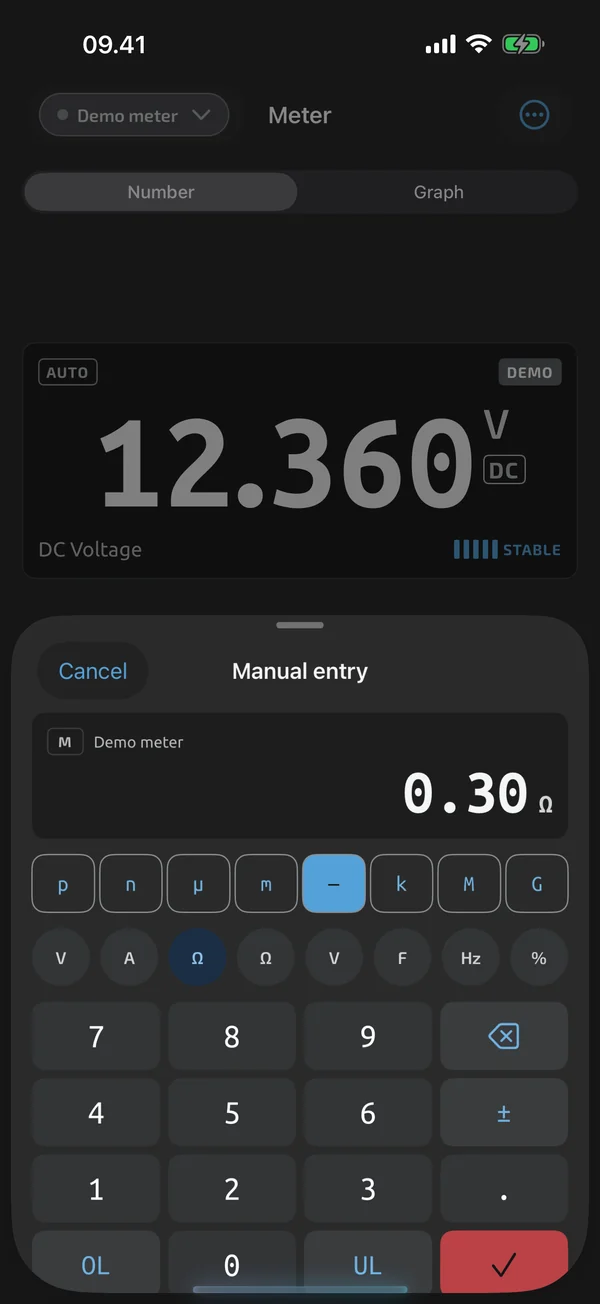
- Any other instrument is typed. Add it as a manual instrument, read the number off its display and type it into the step.
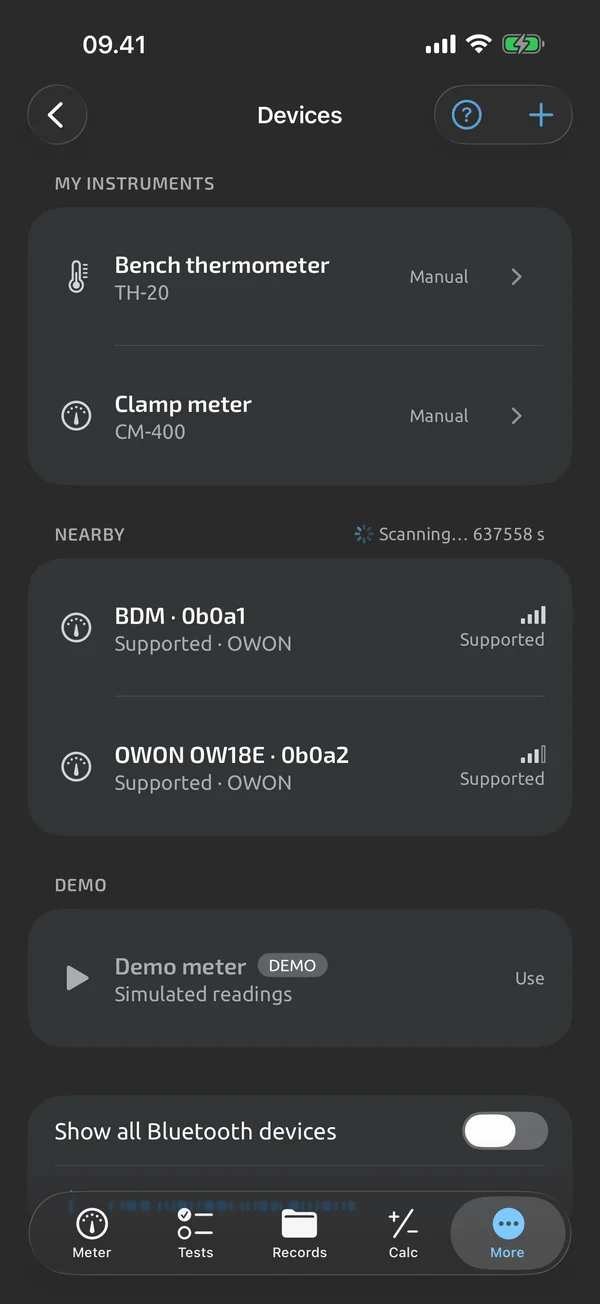
- The report lists every instrument used. Your instrument list holds each meter under a name you choose, and the report lists the instruments used in the run.
- Typed values carry the manual marker in the step table, so a reader can tell a typed value from a captured one.
What you need
- One or more of the Bluetooth meters on the Meters page. Live support is for those models, each checked on hardware.
- Any other instruments you want to use. They need no Bluetooth and no support from the app.
- A template or a starter to run. A run is the same whichever meter takes the reading.
Step by step
- Open the instrument list and add the instruments you will use. Give each a name you will recognise, such as "Bench meter" or "Clamp meter".
- Connect the Bluetooth meter for the first steps. Tap it in the list and live readings start.
- Start the run. For steps measured with the connected meter, capture the reading as usual.
- For a step measured with another instrument, type the value. A step can also take a Pass, Fail or N/A verdict, or a typed value, when that is what the check needs.
- To use a different Bluetooth meter, tap it in the list. It becomes the active instrument.
- Finish the run and export one report.
One report
The finished run exports as an Excel report with real numeric cells and PASS and FAIL cells, as a PDF report with a step table, notes and a signature block, and as CSV. All three are free. The values from every instrument sit in the same table, and typed values are marked manual. The report is your record, not a certification.
Good to know
- One live Bluetooth meter at a time. Two Bluetooth meters cannot stream at once. Capture with one, then switch to the other, or type the second meter's reading.
- Only the listed models are read live. Other meters may work, but they are not claimed. If your meter is not listed, type its readings.
- A typed value is only as good as the typing. The app cannot check a number you read off another instrument.
What the app does here, and what it doesn't
| What it does | Plan |
|---|---|
| Tap a result to connect; the meter becomes the active instrument and live readings start. | Free |
| Keeps a list of your instruments with names you choose, so every reading is tied to the meter that took it. | Free |
| Type the reading from any instrument; typed values are marked as manual. | Free |
| Type a value, or give a Pass, Fail or N/A verdict, when a step needs it. | Free |
| Capture a step, see PASS or FAIL, and the run moves on to the next step. | Free |
| Export log sessions and test files as CSV, free. | Free |
| An Excel test report with real numeric cells and PASS and FAIL cells. | Free |
| A PDF test report with header, result, step table, notes, photos and a signature block. | Free |
Not yet, or not planned
- One live Bluetooth meter at a time for now; two meters at once (voltage and current, with power) is coming.
- Live Bluetooth support is for the meters marked verified or supported on the Meters page; should-work and not-supported meters can be used by typing readings.
- Typed values are marked "manual" in reports.
Questions
Can I put readings from different meters in one report?
Yes. Readings from a connected Bluetooth meter and values you type from any other instrument go into the same run, and the run exports as one Excel, PDF or CSV report.
Can two Bluetooth meters send readings at the same time?
No. One Bluetooth meter is live at a time. Switch the active meter between steps, or type the second meter's reading.
How does a reader know which values were typed?
Typed values carry the manual marker in the step table, and the report lists every instrument used in the run.
Does the other instrument need to be on your meter list?
No. Any instrument can be added as a manual instrument and typed in. The Meters page only lists the models that are read live over Bluetooth.
Coming to iPhone and Android.
iOS and Android, beta this winter.


Questions or a meter to suggest? Mail support@testnmeasure.app.
No ad networks, no sign-up.