Guide · updated 3 November 2026 Free Pro
Pin Table From a Connector Drawing: Import and Run
A connector drawing tells you which pin goes where. Typing 50 steps by hand to test it is slow and easy to get wrong. Instead, write the pin list as a table once, import it, and let the app walk you through every pin and keep the result Pro. Importing a pin table and running your own template are part of Pro, a one-time purchase. The exports are free, and a template shared as a file runs free on any phone.
iOS and Android, beta this winter.
What you need
- The connector or harness drawing, or its wiring list.
- A spreadsheet, or any text you can paste into one. Excel, Numbers, Google Sheets and a plain text file all work.
- A multimeter on its continuity or ohms range, Bluetooth or not. With a supported Bluetooth meter the app captures each pin by itself. With any other meter you type the value (see Meters).
- Pro, for the import in the template builder and for running your own template. A colleague without Pro can run a copy you share as a file.
Step by step
- Write the pin list. One row per conductor: a label, the pin at one end (From), the pin at the other end (To), and, if you want a limit, a minimum or maximum. A Group column with the connector name keeps a long list in order Pro.
- Check it against the drawing. Read the table back against the drawing once. A wrong row here is a wrong step in every later run.
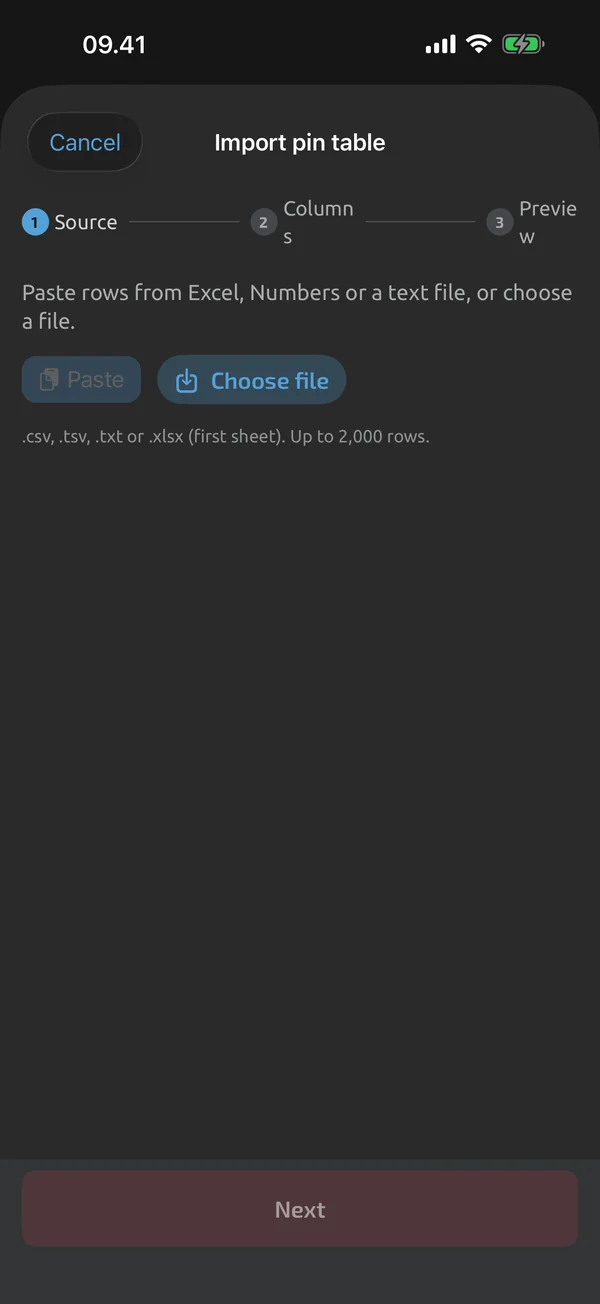
- Import it. In the template builder, tap Import pin table. Paste the text, or open a .csv, .tsv, .txt or .xlsx file; the first sheet of an Excel file is read. You can import up to 2,000 rows at a time Pro.
- Map the columns. For each column pick what it holds: Label, From, To, Group, Expected function, Unit, Min, Max and so on. From and To are joined as "From → To" Pro.
- Preview. The preview shows the first 20 steps. Rows with an unknown unit, or a minimum above the maximum, are flagged. Fix them, or turn on Skip invalid rows Pro.
- Import. Nothing is created until you tap Import. A row with a group value and no label becomes a group heading Pro.
- Add run fields. In the template, add the fields you want asked at the start of every run, such as a harness part number, a serial number that counts up, or a stage.
Pin letters from a drawing
Many connectors name their pins with letters. The label generator builds labels from a prefix, a counter and a suffix. The counter can run A to Z, then AA, BB and so on, with an optional skip list such as I O Q Pro. A prefix of J1- gives J1-A, J1-B and so on. Use it to build the From and To columns before you import.
Groups and many identical points
- One group per connector. A group is a heading over a run of steps, so one table can hold several connectors or cables Pro.
- Many identical points. One multi-channel step can hold 2 to 500 identical points, each with its own result Pro. For a harness where each conductor has its own label and limit, one step per conductor reads better in the report.
Run it
- Pick the template and fill in the run fields.
- Touch the first probe pair. When the reading is steady, auto-capture saves it with no tap, shows PASS or FAIL, and the run moves to the next pin.
- Lift the probe, or let the reading change clearly, before the next capture. The app waits for that, so one steady reading is never saved twice.
- Made a mistake? Go back one pin, skip one, redo one or recheck a step later. Earlier attempts are kept.
- At the end, the summary shows PASS, FAIL or INCOMPLETE with the failed pins listed. Go back and redo a failed pin, or finish.
Auto-capture never saves a reading when the meter is on the wrong function for the step. Units compare strictly: continuity is not ohms, and diode is not volts.
Export the result
Share the finished test file as an Excel report with real numeric cells and PASS and FAIL cells, as a PDF report with a step table and a signature block, or as CSV. Excel, PDF and CSV are all free. Attach the file where your own system keeps its records. The file is your record, not a certification, and there are no connectors to maintenance or ERP systems.
For avionics harnesses
Avionics connectors often have 50 to 129 pins, and a harness is usually checked three times: after the leads are out, after the connectors are fitted, and once installed. Build the pin table once and use a Stage field with those three values, so the same template makes three comparable records. The limit for each conductor comes from your drawing, or from wire gauge and length. For example, AC 43.13-1B para 11-66 d(2) and Table 11-9 list conductor resistance per 1,000 ft by gauge: example; set your own limits. The aircraft or component maintenance manual wins over the AC, which is advisory.
An ordinary multimeter is a poor tool for very low limits. Lead resistance is of the same order as the value you are testing, so press REL with the leads shorted first. For milliohm bonding limits, use a bond tester and type its value into the step; typed values are marked manual.
The aviation starter templates are not in the app yet. Build the pin table as above, or start from the starters that ship today: a 20-pin connector continuity test, and a 12-pin harness template with a lead-out, connectorised and installed stage. For more, see Wire-harness continuity test and Aviation maintenance test records. Your quality system decides how the file is signed and kept.
What the app does here, and what it doesn't
| What it does | Plan |
|---|---|
| Share a template as a .tnmt file that anyone can open in the app. | Free |
| Import a pin table from pasted text, a CSV or TSV file or an Excel sheet, and map its columns to step fields. | Pro |
| Group steps under headers to organise long pin tables. | Pro |
| One step can measure many identical points, 2 to 500 channels, each with its own result. | Pro |
| Start a run with a title and your own metadata fields, such as a serial number that counts up. | Free |
| Capture a step, see PASS or FAIL, and the run moves on to the next step. | Free |
| Saves a steady reading with no tap, and needs a probe lift or a clear change before the next capture. | Free |
| Redo, skip, go back and recheck steps; earlier attempts are kept. | Free |
| The summary shows PASS, FAIL or INCOMPLETE; finish, abandon, or go back and redo a failed step. | Free |
| Warns when the meter is on a different function than the step expects, and holds back auto-capture. | Free |
| REL shows the difference from a stored reference, for example to null out test-lead resistance. | Free |
| Export log sessions and test files as CSV, free. | Free |
| An Excel test report with real numeric cells and PASS and FAIL cells. | Free |
| A PDF test report with header, result, step table, notes, photos and a signature block. | Free |
Pro is a one-time purchase and Cloud is a subscription, both in the app. See what is Free, Pro and Cloud.
Not yet, or not planned
- Starter templates are examples (beta-v1, revisable); you set the limits for your equipment.
- No CMMS/ERP connectors.
- Units compare strictly: continuity is not Ω, diode is not V.
Questions
Can I import a pin table from Excel?
Yes, with Pro. Paste the rows, or open a .csv, .tsv, .txt or .xlsx file (the first sheet) in the template builder and map the columns to step fields. Up to 2,000 rows per import.
Do I need Pro to run the test?
Building, importing and running your own pin-table template need Pro, a one-time purchase. The Excel, PDF and CSV exports are free. A template shared as a file runs free on any phone, so one person with Pro can build it and share it with colleagues.
Can the app read a pin table straight from a drawing or PDF?
No. You type or paste the pin list first. The app does not read drawings, and it cannot create a template from an arbitrary spreadsheet on its own: you map the columns yourself.
Which limit should I use for each pin?
The one your drawing, wire gauge and length, or maintenance manual gives. Starter templates are examples, and you set the limits for your equipment. The limits in this guide are examples only.
Coming to iPhone and Android.
iOS and Android, beta this winter.


Questions or a meter to suggest? Mail support@testnmeasure.app.
No ad networks, no sign-up.