Guide · updated 5 November 2026
How to log a multimeter overnight or for days
Some things only show themselves when nobody is watching: a supply that sags at 3 a.m., a battery that drifts as the room cools, a cabinet that heats up over a weekend. With a Bluetooth multimeter and your phone you can leave the meter on the signal, press Record, and read the whole night as a graph in the morning. Recording and export are free, with no account.
iPhone and iPad: public beta open on TestFlight. Android later.
What you need
- A Bluetooth meter the app reads live, such as the OWON OW18B.
- The signal you want to watch, with leads or clips that hold on their own.
- TestNMeasure on a phone you can put on a charger within Bluetooth range of the meter.
- A meter that stays on. Many meters switch themselves off after a while, so cancel the meter's auto power off before you leave it.
Pick the interval
Each tick stores the latest reading, not an average. A slow signal does not need a fast interval. Choose from the table, then check that the whole run fits well under 1,000,000 samples.
| Interval | Samples per hour | A 10-hour night | Good for |
|---|---|---|---|
| 1 s | 3,600 | 36,000 | a signal that changes in seconds |
| 5 s | 720 | 7,200 | a supply that wobbles |
| 10 s | 360 | 3,600 | most nights, battery drift |
| 60 s | 60 | 600 | slow temperature or voltage drift, multi-day runs |
When in doubt, pick the slower one: you can see a trend in 600 samples, and the file stays small. A faster interval only helps when something can happen between two ticks.
In the Record sheet you can also set an auto-stop after a duration or a number of samples, for example 12 hours. Presets that fill in an interval and a stop rule for you, such as an overnight preset, are Coming.
Set it up for the night
- Connect the meter in the app and set it to the function you want, for example DC volts. Let the reading settle first.
- Clip the leads on, and check that they cannot slip. Do not leave a running setup where a trip or a tug can pull the leads off.
- Press Record, pick the interval and, if you like, an auto-stop.
- Plug the phone in. A long run drains it faster than a screen-off phone normally would, because Bluetooth stays connected.
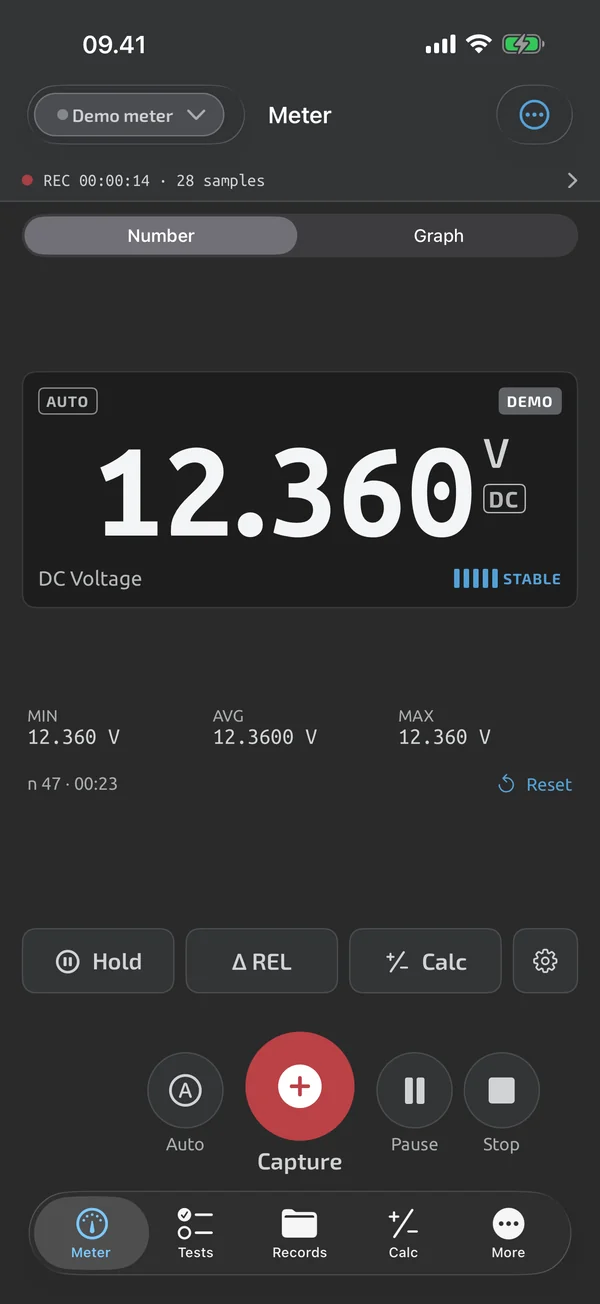
- Lock the phone and put it near the meter. Recording continues with the screen locked or the app in the background. A red pill with the elapsed time and the sample count shows the run is going.
Keep the phone, the charger and the meter somewhere dry, ventilated and out of the way. Do not leave mains or high-energy circuits measured unattended unless the setup is made for it.
Bluetooth range and dropouts
Keep the phone within a few metres of the meter, ideally with nothing metal between them. If the connection drops, the app keeps recording, writes no made-up samples and reconnects by itself when the meter is back. The graph shows the gap, and the session notes when the meter was disconnected.
Two things do end a run, and you need to start it again by hand: the meter switching itself off, and the phone app being force-quit. If the app is closed while recording, the session is paused at the next launch with a gap over the missing time, and the app offers to resume. It never restarts a recording by itself.
Read it in the morning
- Press Stop. The session is saved in Records.
- Open it. The full-session graph shows the whole night, and you can pan and zoom into the moment something happened.
- The minimum, maximum and average are shown for the part of the graph you are looking at, so zoom to the stretch you care about to get its numbers.
- While you watch a run live, the meter screen shows the running minimum, average and maximum since the last reset. Over a long run these are most useful if you did not reset in between.
Export it
Open the session, tap Export and pick CSV or Excel (.xlsx). The Excel file has a Log sheet with real timestamps and a Stats sheet with the minimum, maximum and average. CSV opens in any spreadsheet and keeps every value as recorded. Both are free. For the details, see how to log readings to Excel or CSV.
Alerts
An alert that tells you when a reading leaves a range you set, so you do not have to read the graph to find the spike, is Coming. Until then, the app records everything and you find the event in the graph.
What the app does here, and what it doesn't
| What it does | Plan |
|---|---|
| Log sessions hold captures and time-series recordings, and recording continues with the screen locked. | Free |
| Reconnects to your last meter on launch and after drops, and always shows the connection state. | Free |
| Shows the running minimum, maximum and average since the last reset, with the sample count. | Free |
| Review a session as a full graph with pan and zoom, statistics and its captures. | Free |
| Export log sessions and test files as CSV, free. | Free |
| Export a log session to Excel with real timestamps and a statistics sheet. | Free |
Not yet, or not planned
- No alerts when a reading leaves a range yet; watch mode is coming.
- Auto-record pauses while the screen is off or the app is in the background.
- One open recording per device; up to 1,000,000 samples per session.
Questions
Does the phone have to stay on all night?
Yes, but the screen can be locked. Recording continues with the screen locked or the app in the background, as long as the app is not force-quit. Put the phone on a charger.
How long can I record?
A session holds up to 1,000,000 samples. At 10 s that is more than 115 days, and at 1 s more than 11 days. You will run out of battery or storage on the phone long before that.
What happens if Bluetooth drops?
The app keeps the recording open and reconnects by itself when the meter is in range again. The graph shows a gap for the missing time, and no values are invented.
Can it warn me when the reading goes out of range?
Not yet. Alerts and a watch mode are coming. Today the app records the whole run, and you look for the event in the graph.
Coming to iPhone and Android.
iPhone and iPad: public beta open on TestFlight. Android later.


Free, needs Apple's TestFlight app. Android later.
Questions or a meter to suggest? Mail support@testnmeasure.app.
No ad networks, no sign-up.